SSRS 2016 Scale Out Deployment consists of
- three SSRS application servers
- a reportserver and reportservertempdb databases on alwaysOn AG server
- a network load balancer
SSRS 2016 Load Balanced Farm
Install SSRS service in all three nodes which participate in SSRS Scale Out Deployment
First, install SSRS service on three windows 2012 R2 servers - with install only option. SSRS service is running under a service account. The service account is added as a local administrator on each server.
AlwaysOn AG Servers
In this section, I will not blog about how to build AlwaysOn AG servers. I assumed that readers know how to build alwayson availability group. I have already built SQL sever 2016 AlwaysOn Availability group. Listener name is SQL2016List.
Important Steps
SQL Server Reporting Service (SSRS) is installed on three application servers (Not configured yet) .
Backup
- Back up reportserver and reportservertempdb database from SSRS 2012 Farm
- Back up encryption key from one of the SSRS 2012 application servers from SSRS 2012 Farm. Keep the password of the encryption key
Restore
- Restore reportserver and reportservertempdb on Primary node on AlwaysOn Available Group server
- Add reportserver and reportservertempdb to Availability group on AlwaysOn server
Script
- On primary node of alwayson availability group, run the following script
use ReportServer
go
select * from ReportServer.dbo.Keys
The query returned SSRS 2012 application servers because we restored a reportserver database from SSRS 2012.

- Delete the rows which are SSRS 2012 (old server) server names.
Delete from reportserver.dbo.Keys where MachineName = 'Old SSRS 2012 app server name '
SQL Server Reporting Service Configuration (Do these steps in all SSRS servers )
Log in to first SSRS 2016 server and configure SSRS service.
Web Service URL
Click Apply
Database
Change the database to point to a Listener (SQL2016List) and connect to reportsever database.
SQL server Name : SQL2016List
Database : Reportserver
Web portal
Email
In Email settings, we need to fill out SMTP Server and Sender email. The SMTP information is used in subscription reports.
Execution Account
Execution Account is a different service account (not a service account running under SSRS) . It has read/executte access to Datamart and Data warehouse data sources.
Encryption Keys
Restore an encryption key from SSRS 2012 Farm to SSRS 2016 with password
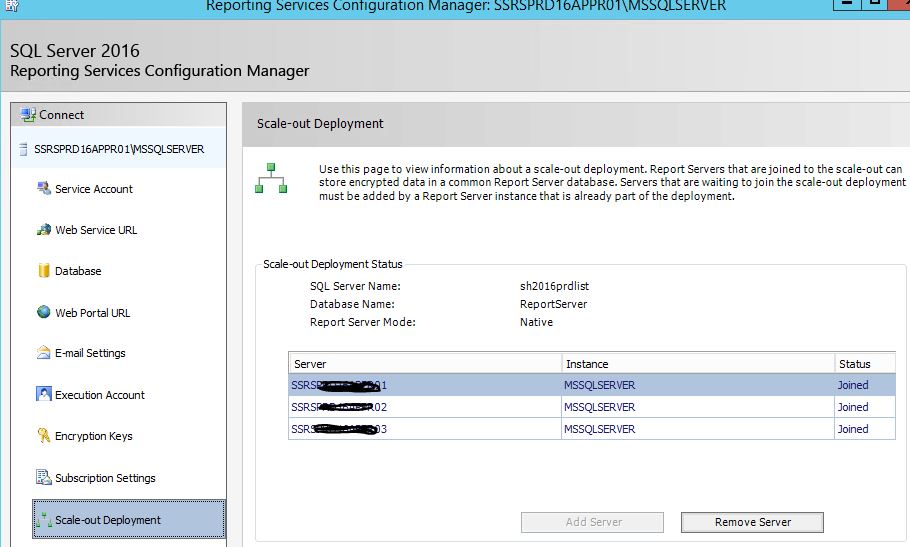
After configuring every tab, SSRS servers joined in Scale out Deployment.
Test SSRS reporting individual link
Test each reporting service link - example http://ssrs01/ReportServer and http://ssrs01/Reports . All three SSRS reporting service web portal links must be working before setting up in a network load balancer.
View Server State Configuration ( do this in all SSRS app. server)
Generate a machine key
First, generate a machine key from the website http://www.developerfusion.com/tools/generatemachinekey/
- In three SSRS 2016 application server, Go to \Microsoft SQL Server\MSRS13.MSSQLSERVER\Reporting Services\ReportServer.
- Make a copy of web.config file
- Open original web.config file in notepad as administrator
- Paste the machine key tag between system.web Tag
- Save the file
- Verify that all web.Config files in all SSRS servers contain identical elements in the section
- Restart SSRS service
Configure Hostname and URL Root (do this in all SSRS app. server)
- Go to \Program Files\Microsoft SQL Server\MSRS13.MSSQLSERVER\Reporting Services\ReportServer
- Make a copy of rsreportserver.config file
- Open rsreportserver.config with notepad as administartor
- add Hostname and UrlRoot between Service tag
- Hostname is SSRSVirtualIPaddress.domain.dom --load balanced virtual ip address
- Urlroot is http://SSRSVirtualIpAddress.domain.dom
- Save the file
- Restart SSRS service
Update Host File (do this in all SSRS app. server)
- Go to C:\Windows\System32\drivers\etc
- Open host file in notepad as administrator
- Add SSRS app. server IP address and Load Balanced SSRS Virtual IP address
- Save the file
Example:
# Copyright (c) 1993-2009 Microsoft Corp.
#
# This is a sample HOSTS file used by Microsoft TCP/IP for Windows.
#
# This file contains the mappings of IP addresses to host names. Each
# entry should be kept on an individual line. The IP address should
# be placed in the first column followed by the corresponding host name.
# The IP address and the host name should be separated by at least one
# space.
#
# Additionally, comments (such as these) may be inserted on individual
# lines or following the machine name denoted by a '#' symbol.
#
# For example:
#
# 102.54.94.97 rhino.acme.com # source server
# 38.25.63.10 x.acme.com # x client host
# localhost name resolution is handled within DNS itself.
#
127.0.0.1 localhost
#
::1 localhost
10.31.22.39 ssrsvip.domain.us.dom
Back Connection Hostname Registry (do this in all SSRS app. server)
- Click Start, click Run, type regedit, and then click OK.
- In Registry Editor, locate and then click the following registry key: HKEY_LOCAL_MACHINE\SYSTEM\CurrentControlSet\Control\Lsa\MSV1_0
- Right-click MSV1_0, point to New, and then click Multi-String Value.
- Type BackConnectionHostNames, and then press ENTER.
- Right-click BackConnectionHostNames, and then click Modify.
- In the Value data box, type
SSRSPRDVIPR01SSRSPRDVIPR01.domain.us.domSSRSPRDAPPR01SSRSPRDAPPR01.domain.us.domSSRSPRDAPPR02SSRSPRDAPPR02.domain.us.domSSRSPRDAPPR03SSRSPRDAPPR03.domain.us.dom
Database Permission
Verify RSExecRole exists in master, msdb,Reportserver and ReportServertTempDB databases on Primary and Secondary node. If not, please run the following script
USE [master]
GO
/****** Object: DatabaseRole [RSExecRole] Script Date: 8/31/2017 2:01:51 PM ******/
CREATE ROLE [RSExecRole]
GO
Assume that the same service account is running SSRS service on there SSRS application servers. It must have the following permission.
master - Public,RSExecRole
msdb - db_owner,RSExecRole,SQLAgentOperatorRole,SQLAgentReaderRole,SQLAgentUserRole
ReportServer - db_owner, RSExecRole
ReportServerTempDB - db_owner,RsExecRole
Master Script
Run the following script in master database on where reportserver and reportservertempdb exist.
Use master
GRANT EXECUTE ON master.dbo.xp_sqlagent_enum_jobs TO RSExecRole
GO
GRANT EXECUTE ON master.dbo.xp_sqlagent_notify TO RSExecRole
GO
Test Report Subscription
Create a test subscription on each SSRS link and verify subscription email works on all SSRS portal which participate in Scale Out deployment.
Last, create a test a subscription on SSRS load balance VIP link. SSRSPRDVIPR01.domain.us.dom\Reports
Below is subscription test cases via SSRS Load Balanced link.
| Test |
Result |
| Create a subscription |
Passed |
| Send email via a subscription |
Passed |
| Does a subscription create a job
in primary |
Passed |
| Does a subscription create a
subscription job in secondary |
Failed |
| Failover databases from primary
to secondary |
|
|
Passed |
| After SSRS restart, does a
created subscription job created in a primary(previously secondary) |
Passed |
| Delete a subscription in SSRS load balanced link |
Passed |
| Does deleting a subscription
from SSRS load balanced link remove a subscription job from SQL agent in both primary
and secondary node? |
Failed |
| Does deleting
a subscription from SSRS load balanced link remove a subscription job from SQL agent
in primary node |
Passed |
| Does deleting
a subscription from SSRS load balanced link remove a subscription job from SQL agent
in Secondary node |
Failed |
We discovered that subscription jobs are only created in SQL Server Agent in Primary replica and they not created in SQL Agent job in a secondary replica. When availability group failovers from primary to secondary node, these subscription job are not automatically created in SQL Server Agent upcoming Primary replica. In order to recreate these subscription jobs in SQL Server Agent automatically after AG group failover we have to restart SSRS service on one of the SSRS server node in the farm.
In order to restart one of the SSRS services automatically , we need to detect AG failover events in Primary and Secondary replica. We will detect EventID=41074 or EventID=41075 under applications from System events. Please follow the screenshots below.
Program Script : C:\Windows\System32\WindowsPowerShell\v1.0\powershell.exe
Add Arguments : noprofile -executionpolicy RemoteSigned -file E:\SSRSLog\SSRSWakeUpCall.ps1
SSRSWakeUpCall.ps1 powershell script is located at E:\SSRSLog\ on AlwaysOn server primary and secondary node.
The powershell script restarts SSRS service on SSRS server node 1 and launch SSRS web link.
SSRS Restart Powershell Script
#WakeUp SSRS resources
Get-Service -Name "SQL Server Reporting Services (MSSQLSERVER)" -ComputerName SSRS01 |Stop-Service
Get-Service -Name "SQL Server Reporting Services (MSSQLSERVER)" -ComputerName SSRS01 |Start-Service
[string] $url = "http://SSRS01/Reports/Pages/Folder.aspx";
[System.Net.WebClient] $wc = New-Object System.Net.WebClient;
$wc.UseDefaultCredentials = $true;
$result = $wc.DownloadString($url);
$wc.Dispose();
Disable Report Subscription jobs in SQL Server Agent on AlwaysOn Secondary replica
To prevent duplicate email report, we need to disable subscription jobs in Secondary node SQL Agent. To disable these job automatically, we need to get a notification of AG failover event. To get notification of AlwaysOn AG group failover, AG Role Change alert is created in SQL Alerts.
USE [msdb]
GO
/****** Object: Alert [AG Role Change] Script Date: 8/31/2017 2:23:45 PM ******/
EXEC msdb.dbo.sp_add_alert @name=N'AG Role Change',
@message_id=1480,
@severity=0,
@enabled=1,
@delay_between_responses=0,
@include_event_description_in=1,
@category_name=N'[Uncategorized]',
@job_id=N'6bc97b04-4786-474f-8c48-8aca8bd4c5c7'
GO
The AG Role Change alert will run a job which executes a stored procedure when AG role change from primary to secondary. The stored procedure will disable report subscription jobs in SQL Server Agent on secondary replica.
JOBChange_AGFailover Stored Procedure
CREATE PROCEDURE [dbo].[JobChange_AGFailover]
AS
BEGIN
SET NOCOUNT ON;
DECLARE @jobID UNIQUEIDENTIFIER --variable for job_id
DECLARE @AG_enable tinyint
select @AG_enable = sys.fn_hadr_is_primary_replica ('ReportServer')
DECLARE jobidCursor CURSOR FOR --used for cursor allocation
SELECT j.job_id
FROM msdb.dbo.sysjobs j
INNER JOIN msdb.dbo.syscategories c
ON j.category_id = c.category_id
where c.name = 'Report Server'
--update jobs
OPEN jobidCursor
FETCH NEXT FROM jobidCursor INTO @jobID
WHILE @@Fetch_Status = 0
BEGIN
EXEC msdb.dbo.sp_update_job @job_id=@jobID, @enabled = @AG_enable
FETCH Next FROM jobidCursor INTO @jobID
END
CLOSE jobidCursor
DEALLOCATE jobidCursor
END
Optimize reporting service startup
Recycle time in RSreportserver.config
In current setting, recycle of application domain is every 12 hrs(default). We can optimize slow response by changing recycle time to larger value(24 hr) and initiate the first call of the report..
By implementing the changes, App Domain recycle will occur outside of business hour and respond time of reporting service will improve.
In rsreportserver config file, change RecycleTime to 1440
Powershell Script
SSRS WakeUp Call
I scheduled to run the powershell script every night at 1 am/1:05 amd /1:10 am on all SSRS application servers . The powershell script in scheduled in Task Scheduler. The script stops and starts SSRS service. Starts reporting service web link.
#SSRSwakeupcall.ps
#WakeUp SSRS resources
Stop-Service "SQL Server Reporting Services (MSSQLSERVER)"
Start-Service "SQL Server Reporting Services (MSSQLSERVER)"
[string] $url = "http://SSRSAPP01/Reports/browse/";
[System.Net.WebClient] $wc = New-Object System.Net.WebClient;
$wc.UseDefaultCredentials = $true;
$result = $wc.DownloadString($url);
$wc.Dispose();